



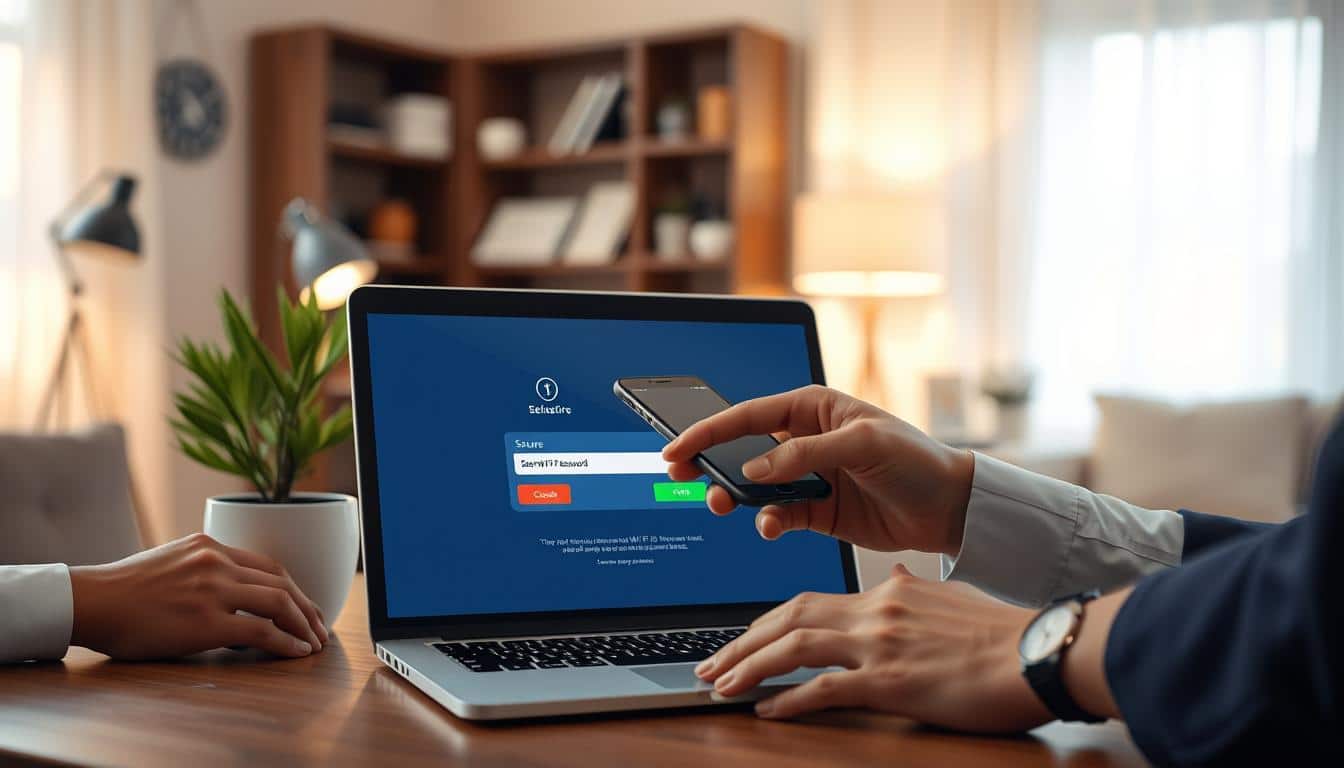
17 Jul How to Share Your Wi-Fi Password Safely and Securely
Sharing your Wi-Fi password with guests, family, or coworkers is common today. You want to give people internet access without risking your network. The challenge is finding methods that protect your connection and personal data.
Many people use outdated ways to share passwords that leave networks vulnerable. Typing out long passwords or writing them down creates security gaps. Hackers and unauthorized users can access your network and steal sensitive information.
Your personal files, banking details, and online accounts become targets without proper protection. Modern technology offers better solutions for password sharing. Apple devices, Android phones, and computers include built-in features that make sharing safer.
QR codes provide an alternative approach that requires no typing. Encryption tools and password managers add extra layers of protection. This guide walks you through the safest methods for sharing your Wi-Fi password.
You’ll learn which approaches work best for different situations. You’ll also discover common mistakes to avoid. Plus, you’ll find strategies to keep your network secure over time.
Key Takeaways
- Use built-in device features like Apple’s AirDrop or Android’s Wi-Fi QR codes instead of writing passwords down
- QR codes offer quick, secure sharing without revealing your full password to others
- Create a separate guest network to share internet access without exposing your main network
- Encryption and password managers protect credentials during the sharing process
- Change your Wi-Fi password regularly and monitor which devices connect to your network
- Avoid sharing passwords through text messages, email, or social media platforms
- Set up access permissions and limits on guest networks to control bandwidth and usage
Understanding the Security Risks of Wi-Fi Password Sharing
Sharing your Wi-Fi password seems simple and harmless. You tell a friend the password, and they connect to your network. The truth is far more complex.
Every time someone gains access to your Wi-Fi, potential security vulnerabilities open up. Hackers can intercept data, steal personal information, and access devices connected to your network. Understanding these risks helps you make smarter choices about network access.
Passwords traveling through unsafe channels become targets for cybercriminals. Your network security depends on keeping that password protected. Many people use methods that leave their credentials exposed and vulnerable.
Why Traditional Sharing Methods Put You at Risk
Text messages, email, and voice calls are common ways people share Wi-Fi passwords. These methods lack encryption and security safeguards. Text messages travel across networks without protection.
Email accounts get hacked regularly. Phone calls can be recorded or overheard. Each method creates opportunities for unauthorized people to capture your password.
Writing down passwords on paper or sticky notes introduces different dangers. Physical documents get lost, stolen, or seen by unwanted eyes. Verbal sharing means passwords travel through air where others might hear them.
Social engineering attacks also work well with traditional methods. Attackers pretend to be someone trustworthy and convince you to share access details. Mobile devices themselves present challenges too.
Sharing passwords verbally or through basic text methods leaves no secure trace. People forget passwords after a while. They might write them down incorrectly.
They share your password with others without your knowledge. Your network access expands beyond your control.
- Text messages lack encryption and security protection
- Email accounts become hacked and compromised regularly
- Verbal sharing leaves no secure documentation trail
- Written passwords on paper get lost or discovered
- Social engineering exploits trust between people
- Passwords spread to unintended individuals
The Forensic Trail Left by Stored Passwords
Your devices keep records of every password you use. Smartphones store Wi-Fi passwords in their system files. Computers save passwords in their memory and backup files.
These stored credentials create a digital forensic trail that hackers can follow. If your device gets stolen or compromised, attackers access all your saved passwords immediately.
Cloud backup services like iCloud and Google Drive store password information automatically. Syncing devices across multiple platforms spreads your credentials across many servers. Each location becomes a potential target.
Password recovery files and browser caches hold sensitive data. Even after you delete passwords manually, copies often remain buried in system folders.
Authentication apps and Wi-Fi managers on your device maintain password histories. Network connection logs show which devices accessed your Wi-Fi and when. Security audits reveal patterns in who accessed your network and from where.
Diagnostic tools can extract stored passwords from device memory. Law enforcement and cybercriminals both possess forensic tools that recover “deleted” password information.
Password vulnerabilities multiply as devices sync across clouds. Issues with two-factor authentication systems can expose stored credentials. Apps that require Microsoft Authenticator app troubleshooting often store backup passwords insecurely.
| Storage Location | Security Risk Level | Data Recovery Possibility | Protection Difficulty |
|---|---|---|---|
| Device System Files | High | Very Easy | Very Difficult |
| Cloud Backup Services | High | Easy | Difficult |
| Browser Cache Memory | Very High | Very Easy | Difficult |
| Password Manager Apps | Medium | Moderate | Moderate |
| Network Connection Logs | High | Easy | Very Difficult |
| Diagnostic Tool Files | Very High | Very Easy | Very Difficult |
Protecting your passwords means controlling where they get stored. It also means controlling who can access those storage locations. Awareness of these risks guides you toward safer sharing methods.
Built-In Password Sharing Features on Mobile Devices
Modern smartphones come with built-in tools designed to share Wi-Fi passwords safely. These features eliminate the need to tell someone your password out loud. Your device handles the sharing process automatically using secure encrypted communication.
This means your password stays protected and never appears in plain text. The easiest way to share your network starts with enabling both Wi-Fi and Bluetooth. Both connection types work together to create a secure bridge between devices.
These wireless technologies allow your devices to recognize each other. They establish a trusted connection for safe password sharing.
iPhone and iOS Devices
Apple users enjoy a seamless sharing experience built into iOS. Someone trying to connect to your Wi-Fi network triggers a notification on your phone. The password holder confirms the share request that appears automatically.
The credentials send securely to the guest device with no manual entry needed.
Follow these steps on your iPhone:
- Open Settings and tap Wi-Fi
- Let the other person attempt to join your network
- A prompt appears on your screen automatically
- Tap Share Password to complete the process
Android Methods by Version and Manufacturer
Android users have multiple options depending on their device type and operating system. Different manufacturers and Android versions offer distinct approaches to sharing credentials securely.
For Android 10 and later devices, access the native QR code generation feature. This built-in method creates a unique code that guests can scan instantly. The QR code approach provides encrypted communication without exposing your password.
To generate a QR code on Android 10 or newer:
- Go to Settings and select Network & Internet
- Choose Wi-Fi
- Tap your network name
- Look for Share or QR Code option
- Guest scans the code with their device camera
Samsung devices offer Quick Share functionality, which provides another secure method. This Samsung-specific feature works similarly to Apple’s approach. Samsung users can access this through their One UI settings interface.
Google Nearby Share capabilities allow users to send network credentials to nearby devices. This Google-developed method uses encrypted signals to share your Wi-Fi information securely. Nearby Share works across different Android devices that have the feature enabled.
| Device Type | Sharing Method | Setup Time | Security Level |
|---|---|---|---|
| iPhone/iPad | AirDrop Password Share | 5 seconds | Encrypted end-to-end |
| Samsung Android | Quick Share | 10 seconds | Encrypted device-to-device |
| Android 10+ | QR Code Generation | 15 seconds | Encrypted end-to-end |
| Google Devices | Nearby Share | 8 seconds | Encrypted end-to-device |
Troubleshooting Common Connection Issues
Sometimes devices fail to detect each other properly. First, verify that both devices have Wi-Fi and Bluetooth enabled. Turn both settings off and back on to reset the connection.
Wait 10 seconds between turning them off and back on.
If share prompts not appearing occurs, try these solutions:
- Move devices closer together, within 15 feet
- Restart both phones completely
- Check that your router is broadcasting your network name
- Ensure the guest device is not already connected to your network
- Update your phone’s operating system to the latest version
For issues where devices not detecting each other happens repeatedly, check your device’s sharing settings. Some phones require you to enable sharing notifications in privacy settings. Look for permissions related to proximity or nearby device detection.
Security Advantages of Built-In Sharing Methods
These built-in features beat manual password transmission because they use encrypted device-to-device communication. Your actual password text never travels through the air unprotected. Encrypted signals carry the information in a way that only authorized devices can decode.
Using these native methods means your password doesn’t appear in text messages or emails. The encrypted approach protects against eavesdropping and keeps your network credentials private. Your guests get access without learning your actual password, improving security.
How to Share WiFi Password Using QR Codes
QR codes offer a quick way to share WiFi credentials with guests. You don’t need to speak passwords aloud or type them manually. This method encodes network details into a small square image that smartphones can scan.
The process converts your network information into a specialized format. It includes your network SSID, password, and security type. Most networks use WPA2 or WPA3 encryption standards.
Using QR codes eliminates the awkward moment of spelling out your WiFi password. Guests simply point their phone camera at the code and tap the notification. This approach reduces miscommunication risks and prevents people from overhearing your credentials.
Generating Secure QR Codes for Network Access
Creating a WiFi QR code is straightforward and requires no special software. Most modern smartphones have built-in QR code generators for WiFi networks.
Here is how to generate your code on different devices:
- On iPhone: Open Settings, tap WiFi, select your network, and choose the option to share the network password
- On Android: Visit your WiFi settings, locate your connected network, and tap the share icon
- Using online generators: Visit a dedicated WiFi QR code generator website and enter your network details manually
The generated code contains encoded information about your connection. Scanning devices read the T:WPA;S:NetworkName;P:Password;;) format automatically. This structure stores your security protocol, network name, and authentication details.
Make certain your password is correct before generating the code. Any mistakes in your credentials will transfer into the QR code. This causes connection failures for your guests.
QR Code Security Best Practices
QR codes provide convenience but need protection like passwords. Your QR code functions like a written version of your WiFi password. It requires the same protective measures.
Follow these critical safety guidelines:
- Never post QR codes on social media platforms like Facebook, Instagram, or Twitter
- Avoid including them in photographs that you share online
- Do not display them permanently on visible signage in your home or business
- Generate new codes whenever you change your WiFi password
- Use temporary physical QR code cards that you show to guests in person rather than leaving them displayed
- Consider creating separate codes that connect to guest networks instead of your main network
- Implement QR codes designed to expire after a set time period
The greatest security advantage of QR codes is their silent operation. Guests gain access without you speaking your password aloud. This prevents shoulder surfing and interception attempts.
The password never passes through the air as spoken words. It never gets typed into visible text fields on shared computers.
For maximum protection, use codes that connect only to guest networks. Guest networks can limit access to your main devices and files. This provides a security buffer between visitors and your personal data.
| Security Method | Best Use Case | Risk Level |
|---|---|---|
| Temporary Physical QR Card | In-person guests staying short periods | Very Low |
| Guest Network QR Code | Regular visitors and guests | Low |
| Main Network QR Code (Temporary) | Family members needing full access | Medium |
| Permanent Displayed QR Code | Not recommended for any situation | High |
Audit your QR code usage quarterly. Check whether you still need specific codes you created earlier. Delete or regenerate codes for networks where you have updated your password.
Encryption Methods to Protect Your Shared Credentials
Protecting your Wi-Fi password requires understanding how encryption works. Strong encryption keeps your password safe from hackers and unauthorized users. Your chosen method makes all the difference in security.
You should verify encryption status before sending your password to anyone. This means checking that your communication channel uses encryption. Many people mistakenly text passwords without protection.
Taking time to use secure methods prevents criminals from intercepting your information.
Understanding Modern Encryption Standards
Modern encryption uses complex mathematical formulas to scramble your password. AES-256 stands as one of the strongest standards available today. Banks and government agencies rely on this encryption level.
WPA3 represents the newest Wi-Fi encryption standard. It offers better protection than older WPA2 systems.
Encryption converts your password into code that only the recipient can read. Think of it as putting your password in a locked box. Only someone with the key can open it.
Implementing End-to-End Encrypted Sharing
End-to-end encryption means only the sender and receiver can read messages. Signal and ProtonMail use this technology. Use apps with perfect forward secrecy to keep old messages protected.
Perfect forward secrecy generates new keys for each conversation. This creates extra security layers.
Avoid cloud-synced notes apps without encryption. Google Keep and standard Notes apps store information on servers without proper protection. Cloud storage exposes your passwords to potential breaches.
Choose apps that encrypt data before it leaves your device. Delete encrypted messages after the recipient saves the password securely. Once someone has your Wi-Fi password, the original message becomes unnecessary.
Deleting messages reduces the number of places where passwords exist. This practice cuts down on security risks significantly.
| Encryption Method | Security Level | Best Use Case |
|---|---|---|
| AES-256 | Military Grade | Highly sensitive credentials |
| Signal App | End-to-End Encrypted | Direct password sharing |
| ProtonMail | End-to-End Encrypted | Email password transmission |
| WPA3 | Network Level | Wi-Fi password protection |
Implementing strong encryption takes just a few extra minutes. The protection you gain makes this time investment worthwhile. Your personal network security depends on how seriously you treat password sharing.
“Encryption is the best tool we have to protect our digital lives.” – Cybersecurity Expert Analysis
Use these encryption methods together for maximum protection. Combine end-to-end encrypted apps with careful deletion practices. This layered approach creates a strong defense against password theft.
Using Password Managers for Secure Wi-Fi Credential Sharing
Password managers offer one of the safest ways to share your Wi-Fi credentials with family, friends, or coworkers. These digital tools protect your network information through advanced security features that keep your data private. A password manager eliminates the need to share passwords through text messages, emails, or verbal communication.
Start by creating a secure note or Wi-Fi credential entry within your password manager. You’ll include the network name (SSID), password, security type, and any additional network information. This centralized approach keeps all your network details in one protected location.
The primary benefit of using a password manager comes from its encryption capabilities. The data travels with end-to-end encryption through the password manager’s sharing function. The recipient can access it through their own password manager account without the password being transmitted in readable form.
Advanced Sharing Features
Modern password managers include powerful tools beyond basic sharing. Temporary sharing automatically revokes access after a specified period you choose. This works well for guests visiting or contractors needing short-term network access.
You can also share with non-password manager users through encrypted links. Audit logs track who accessed shared credentials and when. This transparency helps you monitor your network security and identify any suspicious activity.
Centralized Password Management Benefits
- Update Wi-Fi passwords once in your password manager
- All authorized users automatically receive updated credentials
- No need to share new passwords individually
- Maintain control over who can access your network
- Track sharing history and revoke access instantly
Changing your Wi-Fi password becomes simple with centralized password management. Update it once in the password manager, and all authorized users receive the updated credentials automatically. You skip the hassle of telling people about the change through various communication channels.
Popular password managers like Bitwarden, 1Password, and Dashlane all support secure credential sharing. Select the option that best fits your needs and your family’s technical comfort level.
Guest Network Configuration as an Alternative to Password Sharing
The safest way to let visitors access your internet is by setting up a guest network. This method keeps your main network secure while giving guests the connectivity they need.
A guest network works like a separate door into your home internet. Guests can browse the web, check email, and stream content. They cannot access your personal devices, files, or sensitive information on your primary network.
Guest networks eliminate the need to share primary network credentials entirely. You never have to give out your actual Wi-Fi password to anyone. This approach protects your network from unauthorized access and reduces security risks.
Setting Up Isolated Guest Networks
Start by accessing the router admin panel through your web browser. Type either 192.168.1.1 or 192.168.0.1 into the address bar. Enter your router login information.
Next, locate the guest network settings. These usually appear under wireless settings or guest access in your router menu. Look for an option that says “Enable Guest Network” and click it.
Creating a separate SSID that clearly identifies it as a guest network comes next. Name it something obvious like “Guest WiFi” or “Visitor Network.” Set a strong but shareable password that guests can easily remember and type.
The most critical step involves enabling AP isolation or guest isolation. This security feature prevents guest devices from accessing other devices on the network. Guests can access the internet but cannot see or interact with your primary network devices.
| Network Segmentation Feature | What Guests Can Do | What Guests Cannot Do |
|---|---|---|
| Guest Network Access | Browse websites | Access your computer files |
| Internet Connectivity | Stream videos | See network printers |
| AP Isolation Enabled | Check email | Connect to smart home devices |
| Separate SSID | Download files | Access network storage devices |
Managing Guest Network Access and Permissions
Once your guest network is active, you need to manage it carefully. Setting bandwidth limitations prevents guests from consuming all available internet speed. Most routers let you assign maximum speeds to the guest network.
Implementing time-based access automatically disables the guest network during certain hours. This feature works well if guests visit only during specific times. You can configure access schedules for temporary visitors and remove access when they leave.
Monitor connected devices through the router interface to see who uses your guest network. This helps you spot any unauthorized connections quickly. Temporarily disable guest access when not needed.
Set up content filtering or parental controls on the guest network if needed. Change the guest network password periodically or after specific guests leave. This practice maintains security and prevents old passwords from being shared.
- Access router admin panel at 192.168.1.1 or 192.168.0.1
- Find guest network settings under wireless settings or guest access
- Enable the guest network feature in your router menu
- Create a separate SSID with a clear guest network name
- Set a strong but shareable password for easy guest access
- Enable AP isolation to block guest device interaction with primary network
- Set bandwidth limitations to protect your main internet speed
- Use time-based access to automatically disable the network off-hours
- Configure access schedules for temporary visitors
- Monitor connected devices through the router interface regularly
- Temporarily disable guest access when visitors are not present
- Change the guest network password after guests depart
Guest networks represent the most secure approach to providing visitor internet access. They give you complete control over what guests can access. Your personal data stays safe because network segmentation keeps guest devices separated from your main network.
Stateless and Diskless Security Approaches for Advanced Protection
Advanced security methods are changing how we protect Wi-Fi passwords and network credentials. Powerful systems maintain no permanent storage of sensitive data. They operate entirely from RAM or read-only memory that resets with each power cycle.
This method removes the ability for attackers to extract passwords or configuration data from powered-down devices. It eliminates forensic recovery risks that plague traditional routers.
The Tor Project’s implementation of stateless relay systems shows how this principle works in real-world applications. These systems refuse to store information permanently, leaving nothing behind for forensic analysis. Home routers and network devices are beginning to adopt similar features.
Trusted Platform Module (TPM) technology represents another critical advancement. These specialized chips function as secure cryptoprocessors that store cryptographic keys in hardware rather than software. Hardware-based key storage remains resistant to extraction even with physical device access.
Your network credentials stay protected even if someone gains physical control of your router.
How TPM Technology Protects Your Credentials
TPM chips enable secure boot processes that verify system integrity before allowing network credentials to be unsealed. They support remote attestation, which allows verification of device security status from a distance. These features work together to create a fortress around your sensitive network information.
Routers with secure enclaves for credential storage represent the next generation of consumer networking equipment. Network devices with hardware-backed encryption are becoming more common as privacy concerns grow. Firmware that minimizes persistent storage of sensitive data is the emerging standard for protecting Wi-Fi passwords.
Current Implementations and Real-World Applications
- Enterprise-grade routers with TPM chips and stateless operation
- Consumer routers featuring secure enclaves for credential storage
- Network devices with hardware-backed encryption capabilities
- Modern firmware designed to avoid permanent data storage
- Devices supporting remote attestation and secure boot verification
These approaches represent the gold standard for organizations and individuals with elevated security needs. Journalists, activists, legal professionals, and businesses handling sensitive data benefit most from these technologies. The trend toward increasing adoption reflects growing awareness of privacy threats and tightening regulatory requirements.
Understanding Current Limitations
Despite their benefits, these advanced protection methods come with practical challenges. Higher costs mean fewer consumers can afford them today. Increased complexity for average users makes setup and maintenance more difficult.
Compatibility considerations may prevent integration with existing home network systems.
| Technology Type | Key Benefit | Best For | Current Limitation |
|---|---|---|---|
| Stateless Systems | No persistent data storage | High-security environments | Higher cost |
| TPM Technology | Hardware-based key storage | Credential protection | Increased complexity |
| Secure Enclaves | Isolated credential storage | Consumer routers | Compatibility issues |
| Hardware-Backed Encryption | Physical security layer | Device protection | Limited availability |
As privacy concerns accelerate and regulatory frameworks strengthen, expect wider adoption of these technologies in consumer networking equipment. Organizations handling confidential information should prioritize devices implementing these advanced security features now. Understanding these options helps inform future router purchases and network security decisions.
Avoiding Common Wi-Fi Password Sharing Mistakes
Sharing your Wi-Fi password creates real security risks that many people overlook. Handing over network credentials without thinking opens doors to unauthorized access and data breaches. Understanding what mistakes to avoid helps protect your personal information and keeps your network secure.
This section explores dangerous practices you should eliminate. You’ll learn how to prevent unauthorized users from accessing your connection.
Dangerous Sharing Practices to Eliminate
Many people share Wi-Fi passwords in ways that create serious security problems. Writing passwords on sticky notes, texting them in plain messages, or saying them out loud leaves networks exposed. These methods create easy targets for hackers and curious neighbors wanting free internet access.
Always choose strong, unique passwords for your streaming accounts and Wi-Fi networks to prevent unauthorized access. Avoid sharing your login details with individuals outside of your immediate household. Use secure methods that protect your information from being intercepted or stored insecurely.
| Risky Practice | Security Level | Better Alternative |
|---|---|---|
| Texting passwords in plain text | Very Low | Use encrypted messaging apps |
| Writing passwords on paper | Very Low | Use QR codes for sharing |
| Sharing verbally to multiple people | Low | Share with individuals separately |
| Using the same password for years | Low | Change passwords every 90 days |
| Sharing with anyone who asks | Very Low | Set up a guest network instead |
Protecting Against Unauthorized Access
Unauthorized access happens when someone gains entry to your network without permission. This person can steal personal data, slow down your internet, or use your connection for illegal activities. VPNs play a crucial role in secure streaming and overall network protection.
A VPN enhances online anonymity by masking your IP address and adding encryption. This protection is useful for securing data on shared networks where multiple users connect.
To protect your network effectively, implement these essential steps:
- Enable WPA3 encryption on your router immediately
- Disable WPS (Wi-Fi Protected Setup) features completely
- Change default router usernames and passwords
- Hide your network name from public broadcasting
- Set strong passwords with uppercase, numbers, and symbols
- Monitor connected devices on your network regularly
Check resources about how to secure streaming services for information about encrypted data associations with reputable providers. Unverified services show high privacy risks that extend beyond just password sharing. Keeping track of who connects to your network and removing old devices prevents strangers from gaining access.
Regular password updates combined with strong encryption standards create layers of protection. Rotating your Wi-Fi password every few months automatically removes access for anyone who knew old credentials. This simple practice stops ex-guests, contractors, or compromised passwords from providing backdoor entry to your network.
Secure Communication Channels for Password Transmission
Sharing your Wi-Fi password requires careful selection of the right communication channel. Not all messaging apps offer the same level of protection. Choosing the wrong platform puts your credentials at serious risk.
The best channels feature end-to-end encryption that prevents intermediaries from reading messages. This ensures your password stays private during transit. Look for platforms offering verification features that confirm recipient identity before you share sensitive information.
Three distinct tiers exist when evaluating messaging platforms for password sharing. Understanding these categories helps you make informed decisions about which tool to use in different situations.
Tier 1: Most Secure Platforms
Signal stands out as the top choice for sharing Wi-Fi passwords. This app offers end-to-end encryption by default. Disappearing messages automatically delete sensitive information.
Screenshot notifications alert you when someone captures your message. Open-source code has been extensively audited by security researchers. These features work together to create a nearly impenetrable barrier for your credentials.
Wire provides similar security features with multi-device support. You can access conversations across your phone, tablet, and computer. Both platforms have undergone rigorous security testing and audits.
Threema requires no phone number to register. It uses end-to-end encryption for all communications without collecting personal identifying information.
Tier 2: Secure With Limitations
WhatsApp offers end-to-end encryption but carries an important caveat. Meta owns the platform and collects metadata about your communications. This information alone can reveal patterns about your network.
Telegram’s secret chats provide stronger protection than standard conversations. Standard Telegram chats are not end-to-end encrypted by default. Use the “Secret Chat” feature exclusively for sensitive information sharing.
iMessage provides end-to-end encryption between Apple devices. Yet it stores messages in iCloud backups unless you specifically disable this setting. Check your iCloud backup settings before relying on iMessage for password transmission.
Tier 3: Avoid for Password Sharing
Standard SMS text messages offer zero encryption protection. Your password travels across multiple servers completely exposed.
Facebook Messenger stores your conversations on Meta’s servers unless specifically using disappearing messages in encrypted mode. Email requires PGP encryption, a complex process beyond most users’ capabilities. Any platform lacking encryption features presents unacceptable risks for your credentials.
| Platform | End-to-End Encryption | Ephemeral Messages | Verification Features | Security Level |
|---|---|---|---|---|
| Signal | Yes, by default | Yes, disappearing messages | Safety numbers, screenshots detected | Tier 1 |
| Wire | Yes, by default | Yes, timed deletion | Verification codes available | Tier 1 |
| Threema | Yes, all communications | Yes, message deletion | Verification via QR code | Tier 1 |
| Yes, but Meta collects metadata | Yes, disappearing messages | Safety numbers available | Tier 2 | |
| Telegram Secret Chats | Yes, in secret mode only | Yes, self-destructing messages | Verification codes | Tier 2 |
| iMessage | Yes, between Apple devices | Limited options | Verification codes | Tier 2 |
| SMS/Text Messages | No encryption | No | None | Tier 3 |
| Email (without PGP) | No encryption | No | None | Tier 3 |
Enabling Disappearing Messages in Recommended Apps
Signal makes enabling disappearing messages simple. Open your conversation and tap the person’s name at the top. Scroll down to “Disappearing Messages” and select your preferred timer.
For password sharing, set messages to disappear between 1 to 24 hours. This window gives recipients adequate time to save and implement the password. It also minimizes your exposure to interception.
In Wire, press and hold a sent message, then select “Delete for everyone.” You can set automatic deletion timers through the conversation settings. On Threema, tap settings within a conversation and enable message expiration.
For WhatsApp, open the conversation with your recipient. Tap their name at the top, then select “Disappearing Messages.” Choose 24 hours as your standard timer for password sharing scenarios.
Telegram’s secret chats automatically offer self-destructing messages with customizable timers.
Verification Practices Before Sharing
Always confirm recipient identity through safety numbers or verification codes before sending passwords. Signal displays safety numbers that you can compare with your recipient through a separate communication channel. Ask them to read their safety number aloud to verify the connection.
Consider sending passwords in segments across multiple messages rather than in one block. Send half the password in one message. Send the other half in a second message minutes later.
Combine this approach with verbal confirmation through a phone call for maximum security. This practice ensures that intercepting a single message leaves hackers with incomplete credentials.
Before using any secure communication platform for password sharing, verify that the app uses open-source or audited security implementations. Check the platform’s security documentation and review any published security audits.
“The strongest password becomes useless if transmitted insecurely. Choose your communication channel as carefully as you choose your password itself.”
Document which platform and timer settings you used for each password share. This practice helps you track when old passwords expire and when you should change them. Review your recipient list periodically to ensure you only share credentials with people who still need access.
Regular Security Audits and Password Rotation Strategies
Keeping your Wi-Fi network safe requires more than setting a strong password once. You need to check your security regularly and change your password at the right times. A solid password rotation plan stops hackers from using old credentials to break in.
Most people don’t realize that passwords sitting unused for months become bigger targets. Studies show that regular password rotation reduces long-term security risks by up to 40 percent. Next-generation routers will soon include automated password rotation features for home users.
Your password rotation schedule should match your living situation. People in apartments or dormitories should change passwords every 90 days. If you live in a typical home with occasional guest access, change your password every 6 months.
When and How to Change Your Wi-Fi Password
Certain situations demand that you change your password right away. These critical moments include when someone who had password access moves out or ends a relationship. Change your password after hosting large gatherings where passwords were widely shared.
If you notice unexplained network slowdowns or unusual data usage, that signals a problem. When security vulnerabilities are discovered in your router model, act fast. After any indication of potential unauthorized access, get a new password in place immediately.
Changing your Wi-Fi password takes just a few minutes. Here’s how to do it on major router brands:
Netgear Routers
- Open your web browser and go to routerlogin.net or 192.168.1.1
- Sign in with your admin username and password
- Click on “Advanced” then “Wireless Settings”
- Find the “Wireless Password” field under your network name
- Create a new password with a minimum 12 characters, mixing character types, avoiding dictionary words
- Click “Apply” to save your changes
- Update the password on all authorized devices to prevent them from losing connectivity
TP-Link Routers
- Visit 192.168.0.1 in your browser
- Enter your admin credentials to access the router admin panels
- Select “Wireless” or “Wi-Fi” from the left menu
- Navigate to wireless security settings and find the password field
- Replace your old password with a strong new one (minimum 12 characters with mixed character types)
- Save changes by clicking the “Save” button
- Reconnect all your devices with the new password
Google Nest Routers
- Open the Google Home app on your phone
- Select your router device
- Tap “Settings” and then “Wi-Fi”
- Choose “Change Wi-Fi Password”
- Type your new password (minimum 12 characters with mixed character types)
- Confirm and save the change
- Update the password on all authorized devices to prevent them from losing connectivity
Strong passwords are essential. Your new password needs at least 12 characters. Mix uppercase letters, lowercase letters, numbers, and symbols.
Avoid dictionary words that hackers can guess with special tools. For example, “BlueSky2024!” works better than “password123.” Once you update your router password, visit each connected device and enter the new credentials.
Monitoring Connected Devices
Checking who connects to your network is just as important as changing your password. You should review your connected devices regularly. Most routers show a list of connected devices in the admin panel.
Each device appears with its name, IP address, MAC address, and connection type. You can usually access this from the “Connected Devices,” “Device List,” or “DHCP Clients” section.
Learn to recognize your own devices first. A comprehensive approach to privacy protection includes knowing exactly what’s on your network. Label your known devices using the naming feature in your router.
Call your laptop “My-Laptop,” your phone “iPhone-Sarah,” and your smart TV “Living-Room-TV.” Clear names make spotting unknown connections much easier. Suspicious devices might show generic names like “Unknown-Device” or random numbers and letters.
Use mobile apps and network monitoring tools to watch your devices. Fing works on iOS and Android and shows detailed device information. Advanced IP Scanner and Wireless Network Watcher are lightweight Windows tools that scan your network.
Router manufacturer apps like Netgear Nighthawk, TP-Link Tether, and Google Home provide mobile device monitoring. These apps send real-time alerts about network activity.
| Monitoring Tool | Platform | Key Features | Best For |
|---|---|---|---|
| Fing | iOS, Android | Device identification, intruder alerts, network speed testing | Mobile monitoring on the go |
| Advanced IP Scanner | Windows | Fast network scanning, device details, system information | Detailed desktop analysis |
| Wireless Network Watcher | Windows | Lightweight interface, alert sounds, MAC address tracking | Basic Windows monitoring |
| Netgear Nighthawk | iOS, Android | Real-time monitoring, threat detection, parental controls | Netgear router owners |
| TP-Link Tether | iOS, Android | Device management, network statistics, guest network control | TP-Link router owners |
| Google Home | iOS, Android | Simple device tracking, network basics, setup help | Google Nest users |
Set up notifications for new device connections if your router supports this feature. Many modern routers alert you when unknown devices try to connect. Check your connected devices at least monthly for typical users.
Security-conscious individuals should check weekly. People with elevated security needs should use continuous monitoring through automated tools. This constant watch catches problems before they become serious.
Don’t immediately block an unknown device. First, try to identify it. Ask family members if they connected something new.
Check if a delivery service, installer, or maintenance person accessed your network. Look up the MAC address to see the device manufacturer. Visit what devices are connected to see if the name gives you clues.
If you’re certain a device doesn’t belong on your network, block it. Use MAC address filtering to prevent it from connecting. Most routers have blacklisting options that let you block specific devices permanently.
Some routers show a “Block” button right next to unknown devices in the connected devices list. Taking action quickly protects your network from unauthorized users stealing bandwidth or data.
- Monitor devices at least monthly for typical users
- Check weekly for security-conscious individuals
- Use automated tools for continuous monitoring with elevated security needs
- Label all known devices for quick identification
- Investigate unknown devices before blocking them
- Use MAC address filtering to block unauthorized access
- Enable notifications for new device connections
- Review your connected devices list regularly
Conclusion
Sharing your Wi-Fi password doesn’t have to put your network at risk. You learned multiple secure approaches to give others access without compromising security. Guest networks offer one of the best solutions for most households.
Built-in device sharing features use encrypted transmission for quick connections between your own devices. QR codes provide a simple middle ground that keeps your password off paper. These methods avoid verbal or written password exposure entirely.
Strong security practices matter now more than ever. Avoid unencrypted SMS, email, social media, and physical notes in public spaces. Use password managers with encrypted sharing or encrypted messaging apps with disappearing messages instead.
Visit Microsoft’s update catalog to keep your devices patched with the latest security fixes. Make regular password rotation part of your routine. Monitor which devices connect to your network.
Frequent Questions About Wi-Fi Password Security:
How often should I change my Wi-Fi password? Change it every three to six months. Change it right away if you suspect unauthorized access. This limits the window of opportunity for potential attackers.
Is it safe to share my Wi-Fi password with neighbors? Sharing with neighbors carries risks. Use a guest network instead. This approach protects your primary connection while offering them internet access.
Can someone hack my network if they have my Wi-Fi password? Yes, a stolen password gives attackers direct access. They could monitor your traffic, steal data, or spread malware. Strong encryption like WPA3 helps reduce this threat.
What’s the difference between WPA2 and WPA3? WPA3 is the newer standard with stronger encryption. It offers better protection against brute-force attacks. Use it if your router supports it.
Do I need to use a guest network if I’m just sharing with family? A guest network adds protection even for family members. Even trusted people can pose accidental risks. Guest networks keep your main devices and files separate from visitors.
Wi-Fi security is heading in a positive direction. Expect widespread adoption of WPA3 encryption across all new devices and routers. Hardware security modules in consumer routers will become standard features.
Guest network configuration through mobile apps and voice assistants will make setup faster. Time-limited password features that automatically expire guest access are coming soon. These advances will make secure sharing effortless.
Start today by auditing your current password sharing practices. Pick at least one new security measure from this guide and put it in place. Set up a guest network if your router supports it.
Create a calendar reminder to change your Wi-Fi password every few months. These actions build a strong defense around your digital life. Network security requires ongoing attention and regular updates.
Your personal data, privacy, and digital safety depend on your access control choices. Taking these steps now protects you in an increasingly connected world.
Sorry, the comment form is closed at this time.